Introduction
The Login Activity application provides a comprehensive overview of user login activities. It includes detailed information such as user details, login and logout statuses, and the duration of each activity. This allows administrators to track user access and monitor login patterns effectively.
Configuration Parameters
- Included Users: You can choose to include all users or specific users across tenants in the report.
- Specific Users Across Tenants: Selecting this option displays a dropdown that lists users grouped by tenant.
- Use the Select Users dropdown to choose up to 100 users.
- All Users for Specific Tenants: This option displays a list of all tenants.
- When you select a tenant, the report will automatically include all users associated with that tenant.
- The Select Clients dropdown allows you to choose up to 50 tenants.
- When Multi-Client is selected, the Share and Notifications settings will follow the same behavior as the All Clients option.
- Specific Users Across Tenants: Selecting this option displays a dropdown that lists users grouped by tenant.
- Select Status: Select the login activity status for which you want to generate the report: Logged in, Logged out, Login Failed, or All.
- Select Login Status/Type: If you selected status as Logged in, then specify the type of login status here.
- Select Logout Status/Type: If you selected status as Logged out, then specify the type of logout status here.
- Supported Analysis Period: The supported analysis periods are: Last 24 hours, 7 days, Last month, Last 3 months, and specific period.
- Supported Formats: Reports will be generated in XLSX format.
Reports Output
- Summary: This section provides the configuration details of the app.
- Details: This section provides you with the details of your login activity.
- Glossary: This section contains detailed information about each section present in the report tab, helping you to understand the contents better.
Sample of reports in XLSX format:
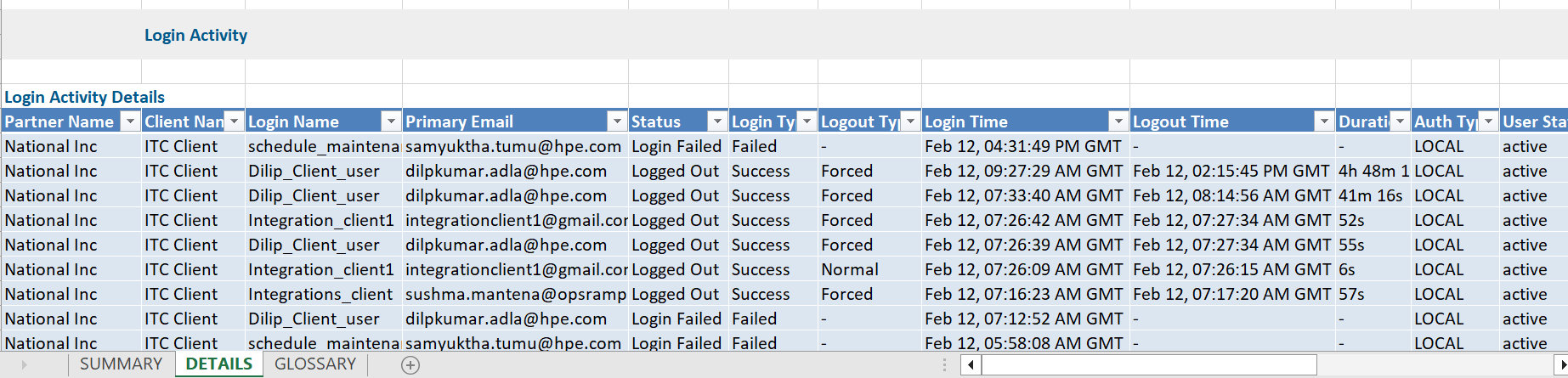
Login Activity Report Vs Login Activity
Click here to view the supported attributes
| Login Activity Report | Login Activity | |
|---|---|---|
| UI Atrributes Selection | Display Format In Report | |
| Partner Name | N/A | Partner Name |
| Client Name | N/A | Client Name |
| Login Name | N/A | Login Name |
| Status | N/A | Status |
| Login Type | N/A | Login Type |
| Logout Type | N/A | Logout Type |
| Login Time (IST) | N/A | Login Time |
| Logout Time (IST) | N/A | Logout Time |
| Source IP | N/A | N/A |
| Source Host | N/A | N/A |
| N/A | N/A | Duration |
| N/A | N/A | Auth Type |
| N/A | N/A | User Status |
| N/A | N/A | Two Factor |