The following section outlines the steps to add any new process definition.
Step 1: Access the Process Definition Page
- Login to the OpsRamp portal.
- Navigate to Automation > Process Automation 2.0.
- The Process Automation Overview page is displayed.
- Click the hamburger icon in the top-left corner and select Process Definition.
- The Process Definition page is displayed.
- To add a new process definition, click + ADD.
- The Add Process Definition page is displayed.
Step 2: Configure Basic Details
In the BASIC DETAILS tab, enter the following:
- Name: Enter a required name for the process.
- Category: Select a category for process automation. Options:
- Automation
- Patch Management
- Network Configuration
- Description: Add more information about the process definition.
- Enable Process Definition: Toggle to enable or disable the process definition.

Click Next. The WORKFLOW tab is displayed.
Step 3: Build the Workflow
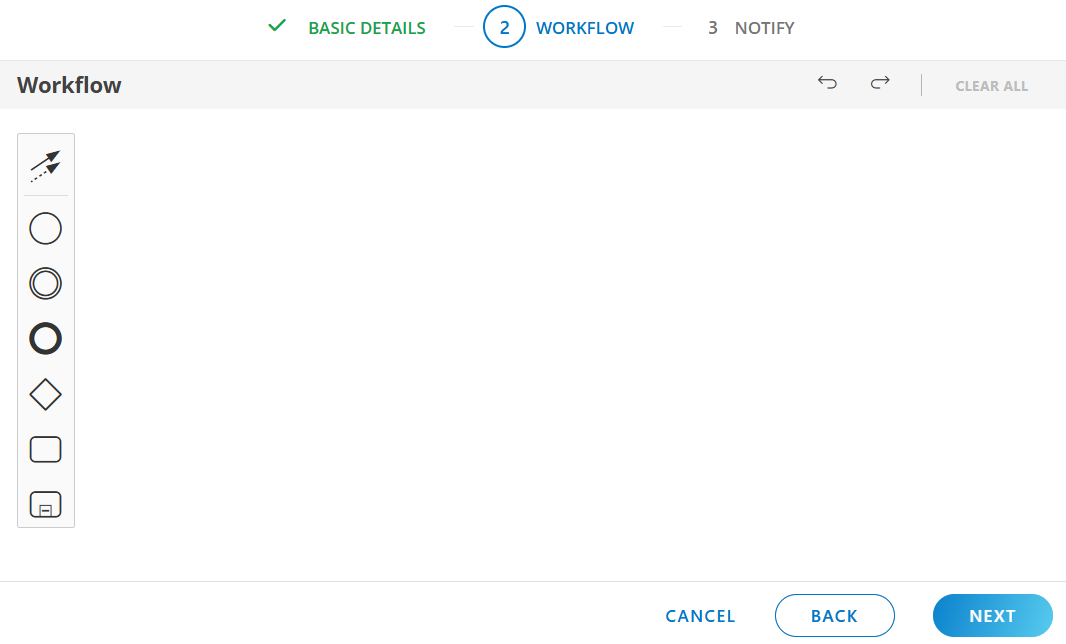
In the WORKFLOW tab:
- Drag and drop components from the component menu to create the workflow visualization.
- Configure properties for each component to correctly define the process.
Step 4: Test Workflow
After creating a task, you can test and validate its configuration immediately. This helps you quickly identify issues and make corrections at either the task level or the full workflow level. There are two testing options available: Test Task and Test Workflow.
Note
This feature is only available for the Automation category.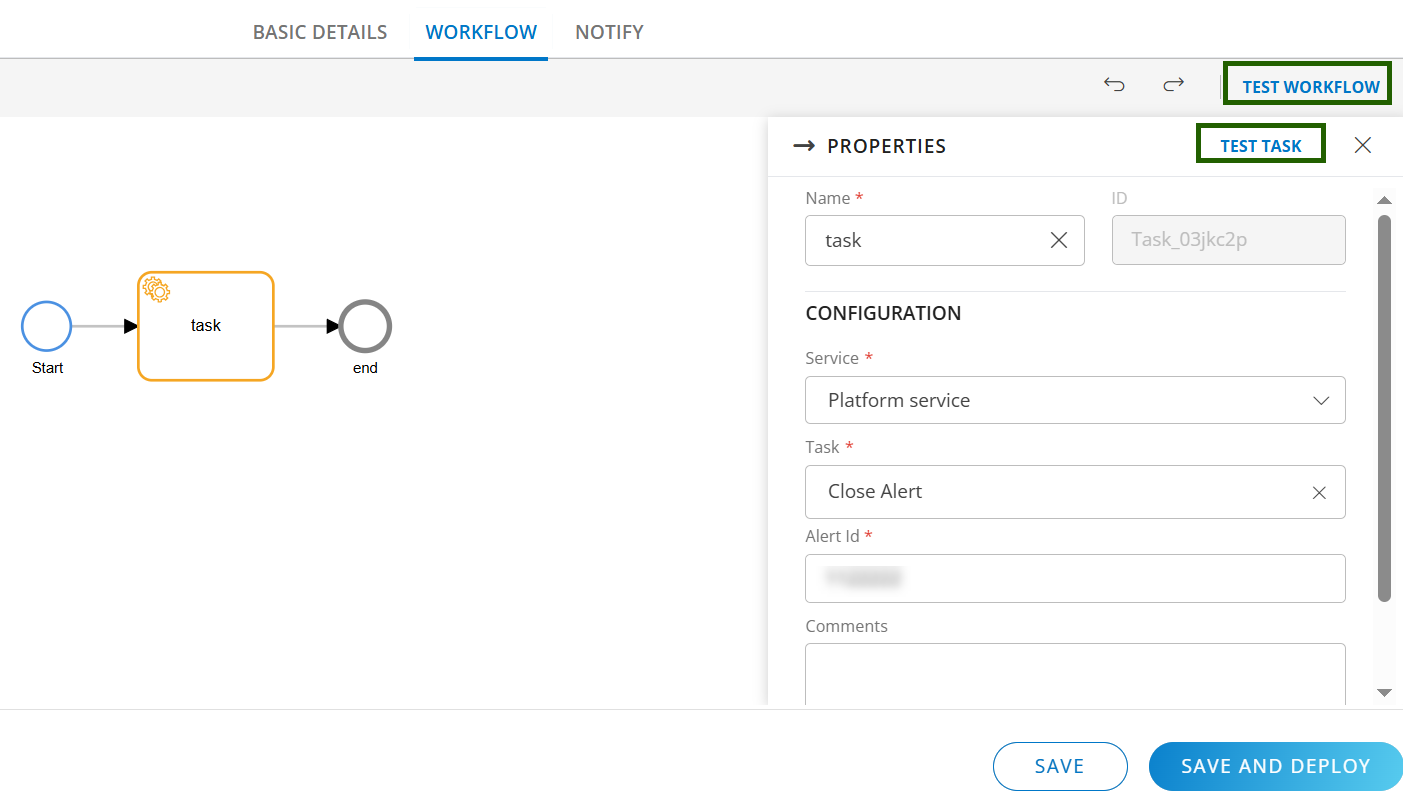
Test Task
Use Test Task to validate a single task before moving forward.
- You can run a test once all mandatory fields are completed.
- If any tokens are required, the system will prompt you to provide token values.
- The task execution output is displayed instantly so you can confirm the expected behavior.
This option is ideal for checking individual tasks independently during creation.
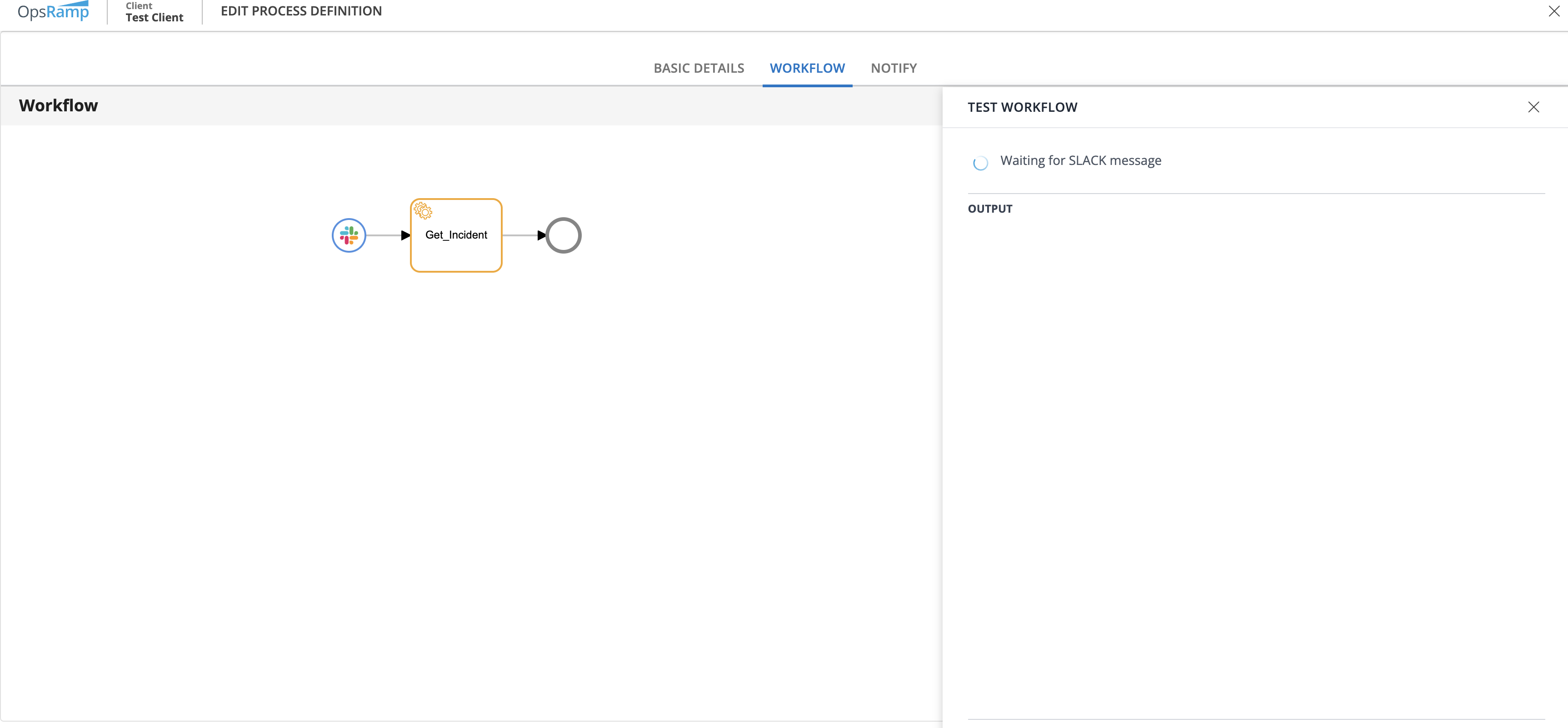
Test Workflow
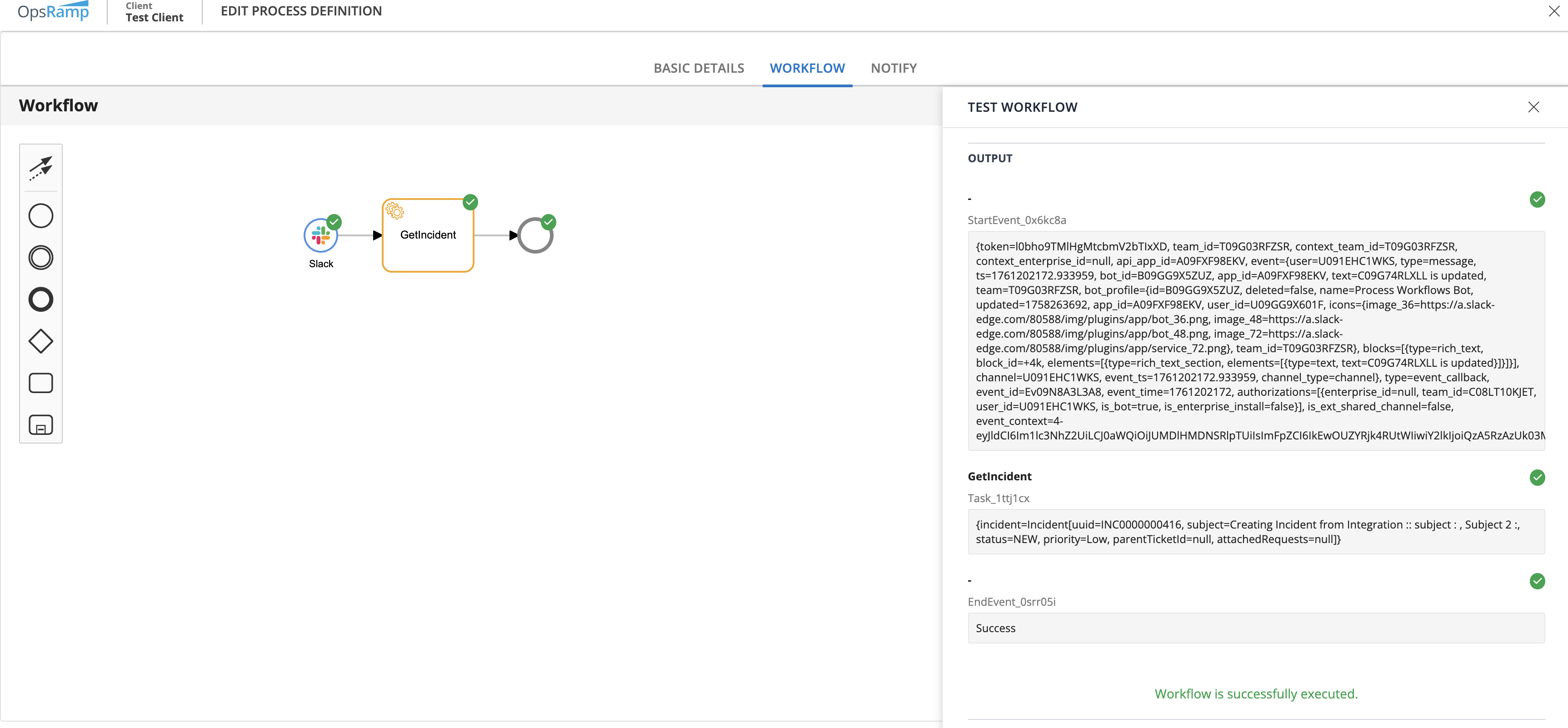
Use Test Workflow to test the entire workflow from start to finish before deployment.
- Run all tasks in sequence after completing the required fields.
- Token prompts appear within the Process Definition, wherever applicable.
- The full test results are shown on a single page, making it easier to analyze the execution flow and troubleshoot any issues.
This option ensures end-to-end validation of the workflow prior to going live.
Step 5: Configure Notifications
In the NOTIFY tab:
- Select the notification option.
- Set the frequency for sending alerts if the process definition gets stuck or fails.

Step 5: Save and Deploy
- Click Save and Deploy.
- After successful deployment, the new process definition is listed in the Process Definitions page.